Get the Installer
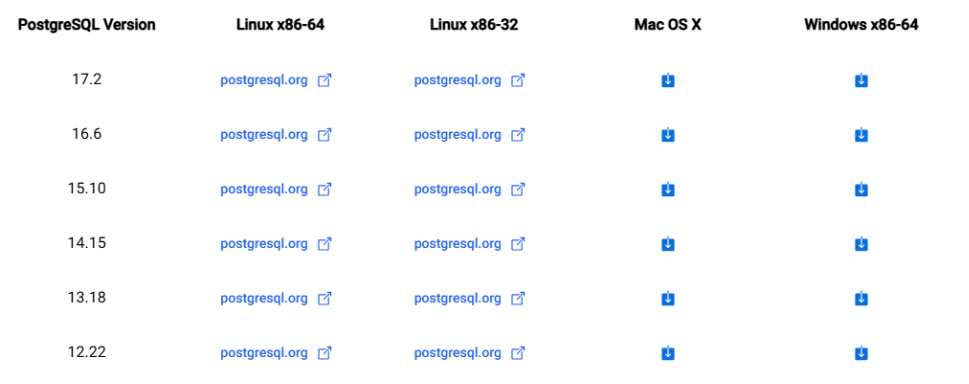
Download the installer from https://www.enterprisedb.com/downloads/postgres-postgresql-downloads
Begin the Installation
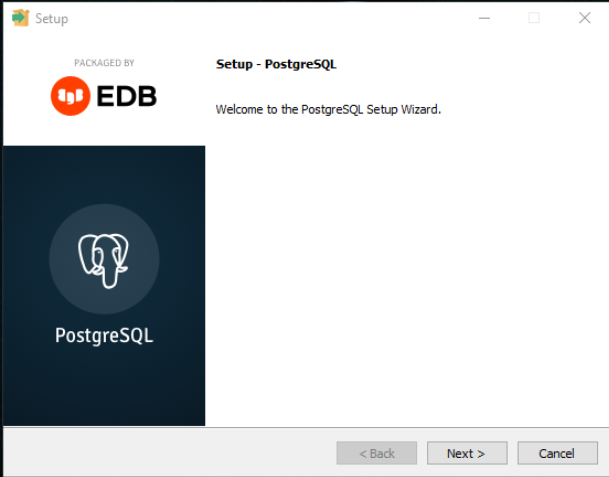
- Make sure you have administrator privileges. Then run the installer. On the Setup screen, click Next >
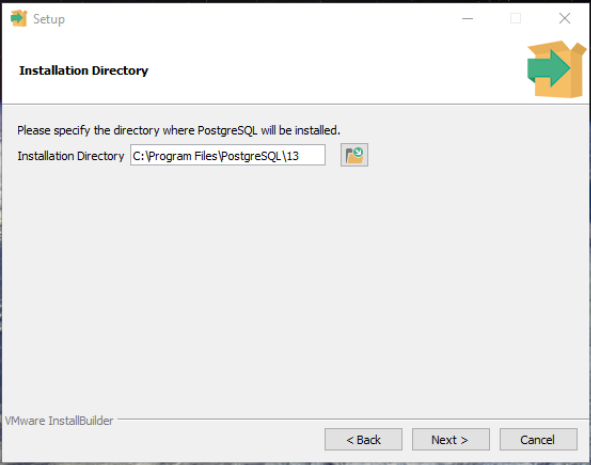
- In the Installation Directory step, accept the default settings, then click Next >
- In the Select Component step, uncheck Stack Builder and leave everything else, click Next >
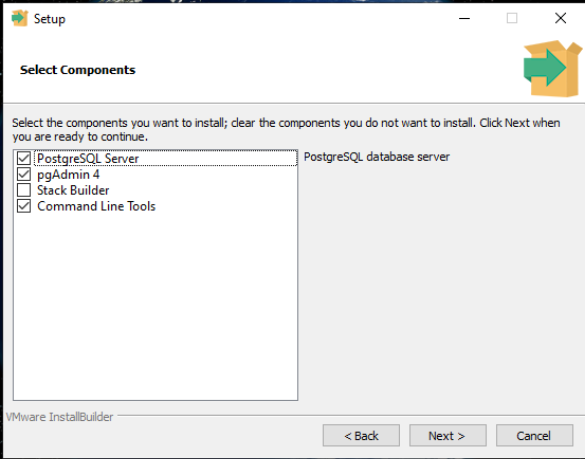
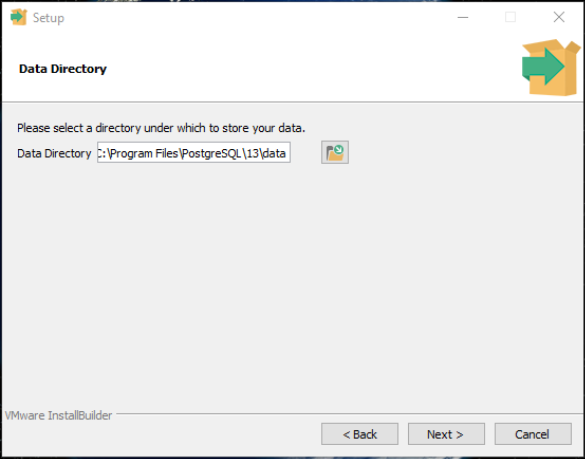
StackBuilder; a package manager that can be used to download and install additional PostgreSQL tools and drivers. Stackbuilder includes management, integration, migration, replication, geospatial, connectors and other tools. - In the Data Directory step, accept default value and then click Next >
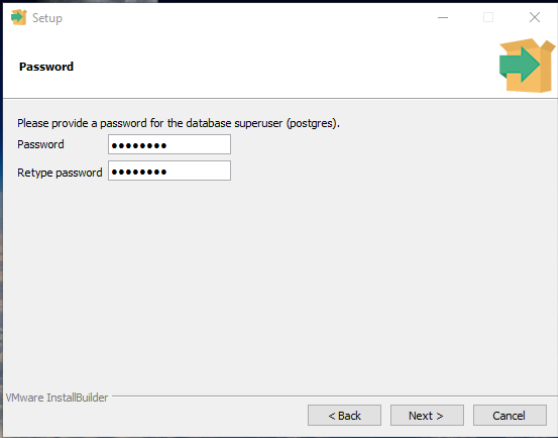
- In the Password step, enter the password for admin. Click Next >
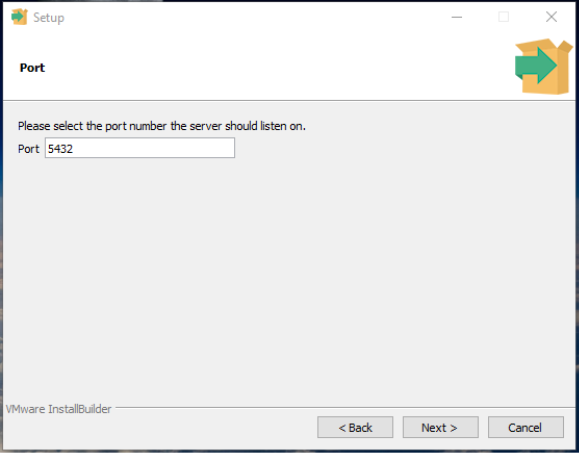
- In the Port step, accept the default value 5432, then click Next >
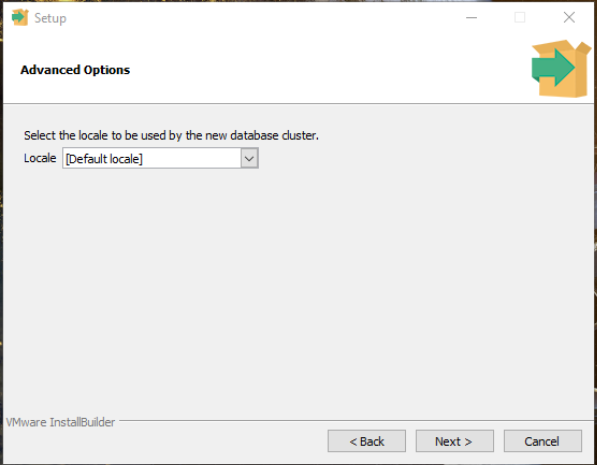
- In the Advanced Options step, accept default locale and click Next >
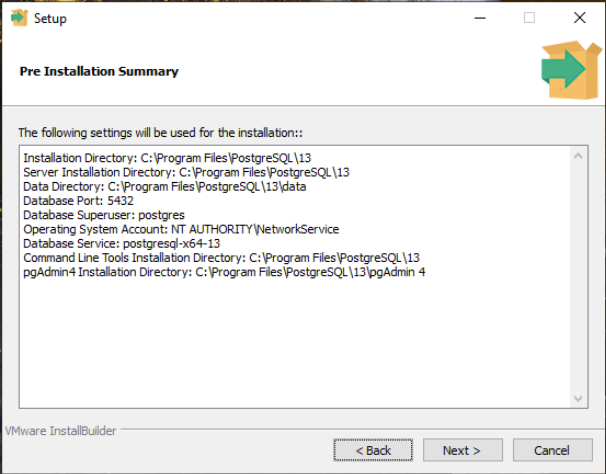
- In the Pre-Installation Summary, review the settings, then click Next >
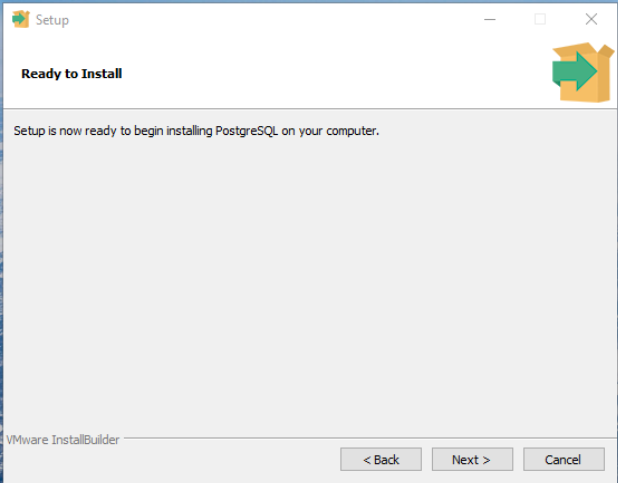
- In the Ready to Install screen, click Next >
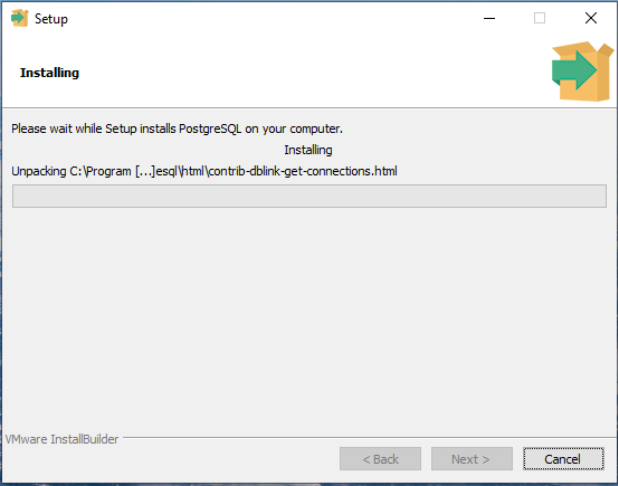
- Installation begins. Wait until it is completed.
- Once installation completed, click Finish to close the wizard.